Lesson 5 Writing Excel VBA Code
Continue learning Excel VBA 2010 with the same shared lesson template and cleaner visual style.
To write the Excel 2010 VBA code(Excel macro language)you must use the Excel 2010 VBA Editor. The simplest way to launch the Excel 2010 VBA Editor is to insert an Active-X control as shown in Figure 5.1.
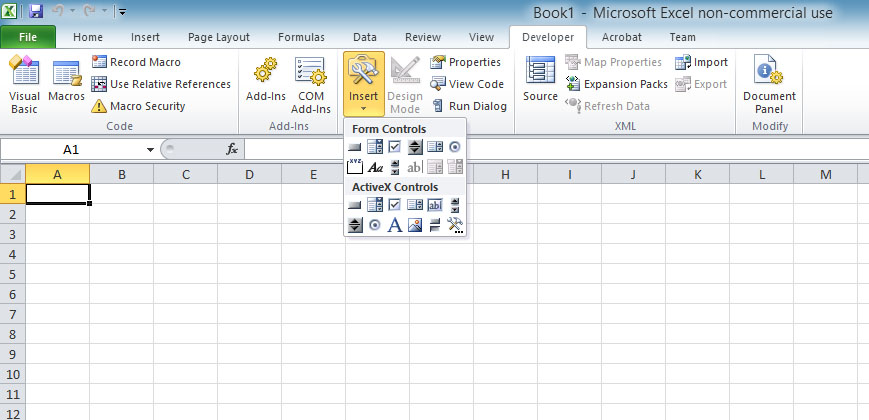
The most commonly used Active-X control is the command button. Insert the command button, then click on the Active-X command button to enter the Excel 2010 VBA editor(VBE). In the VBE, you can enter the VBA code.
Private Sub CommandButton1_Click()
 Your Code
End Sub
Excel 2010 VBA code is event-driven therefore it will respond to some events. In the aforementioned example, it will execute the event when the user clicks on the command button.
Try the following examples:
Example 5.1
Private Sub CommandButton1_Click()
 Msgbox "Welcome to Excel VBA 2010"
End Sub

Example 5.2
You can modify Example 5.1 and it will produce the same result.
Private Sub CommandButton1_Click()
Dim YourMsg As String
 YourMsg = "Welcome to Excel VBA 2010"
 MsgBox YourMsg
End Sub
Example 5.3
This example calculate the mod.
Private Sub CommandButton1_Click()
Dim x,y As String
 x=105
 y=20
 MsgBox x mod y
End Sub

Example 5.4
Private Sub
A = "Tom"
B = "likes"
C = "to"
D = "eat"
E = "burger"
MsgBox A + B + C + D + E
End Sub
Running the code produces the sentence "Tom likes to eat burger". It produces the same effect if we replace the last line with MsgBox A & B & C & D & E.
